DHCP (Dynamic Host Configuration Protocol) is a network protocol that automatically assigns IP addresses and other network settings to devices, such as computers, laptops, printers, and mobile phones. Instead of manually configuring an IP address, subnet mask, default gateway, and DNS servers on every device, DHCP allows a server or router to provide these settings automatically. This makes network administration easier and reduces configuration errors.
Think about an office with 100 computers. Configuring each computer manually would take time, and changing the network addressing scheme would make the job even harder. With DHCP, devices can receive the correct network settings automatically when they connect to the network.
Let’s look at how DHCP works, how IP addresses are assigned, and what you need to check when a device fails to obtain an address.
How Does DHCP Work?
DHCP follows a client-server model. A DHCP client is the device requesting network settings, while a DHCP server provides the configuration.
The DHCP server maintains a pool of IP addresses and assigns them to clients according to its configuration. It can also provide the default gateway, DNS servers, and other network parameters.
For example, consider an office network with the following configuration:
| Setting | Example |
|---|---|
| Network | 192.168.1.0/24 |
| DHCP address pool | 192.168.1.100–192.168.1.200 |
| Default gateway | 192.168.1.1 |
| DNS server | 8.8.8.8 |
| DHCP server | 192.168.1.2 |
When a laptop connects to this network, the DHCP server can assign an available address, such as 192.168.1.100, along with the other required settings.
The laptop can then communicate with devices on its local network and use the configured gateway to reach other networks.
What Is the DHCP DORA Process?
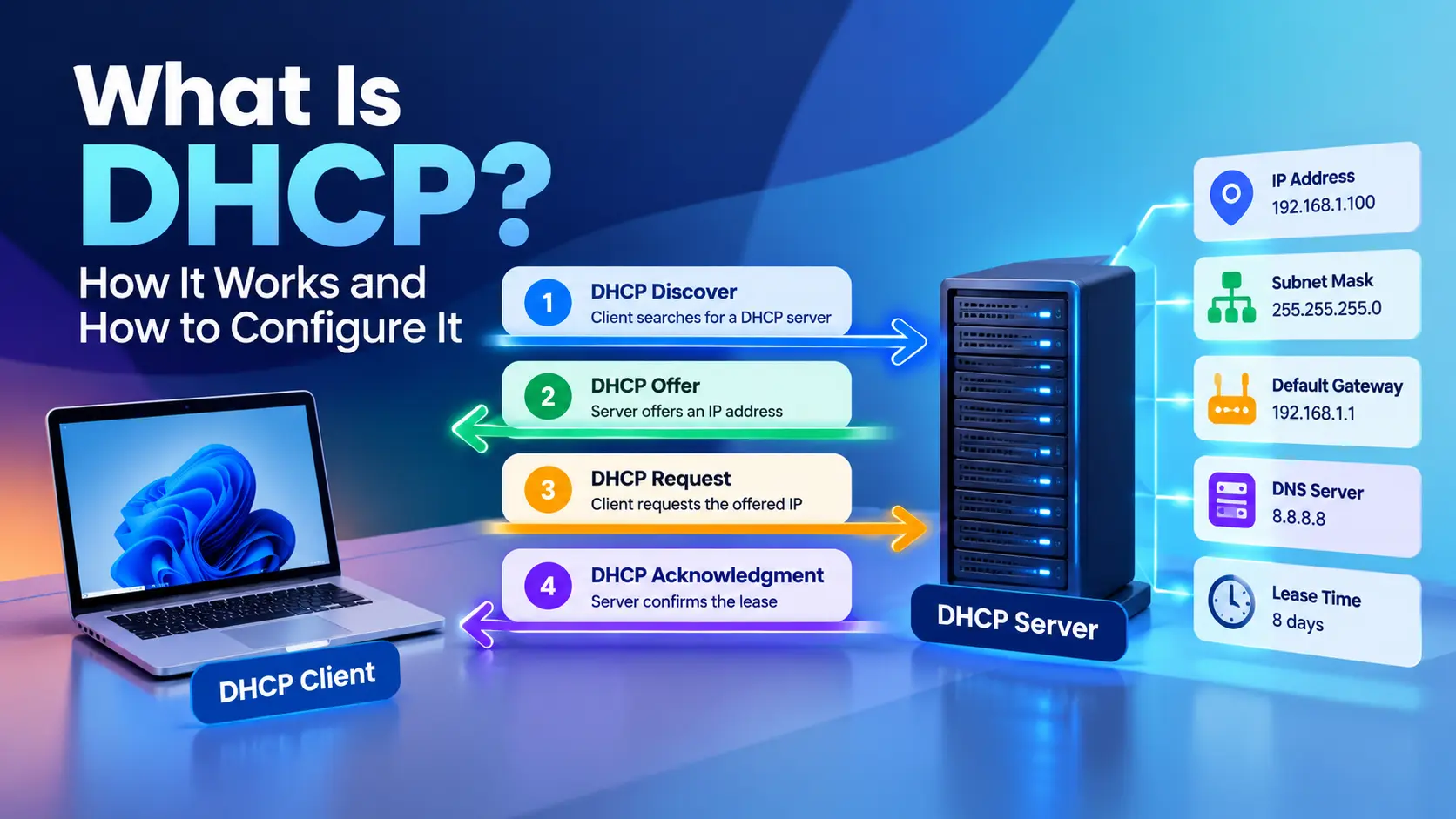
DHCP uses four main messages during the typical initial IPv4 address assignment process. These messages are commonly known as DORA:
- Discover: The client searches for available DHCP servers.
- Offer: A server offers an available IP address and configuration.
- Request: The client requests the offered address.
- Acknowledgment (ACK): The server confirms the assignment and lease.
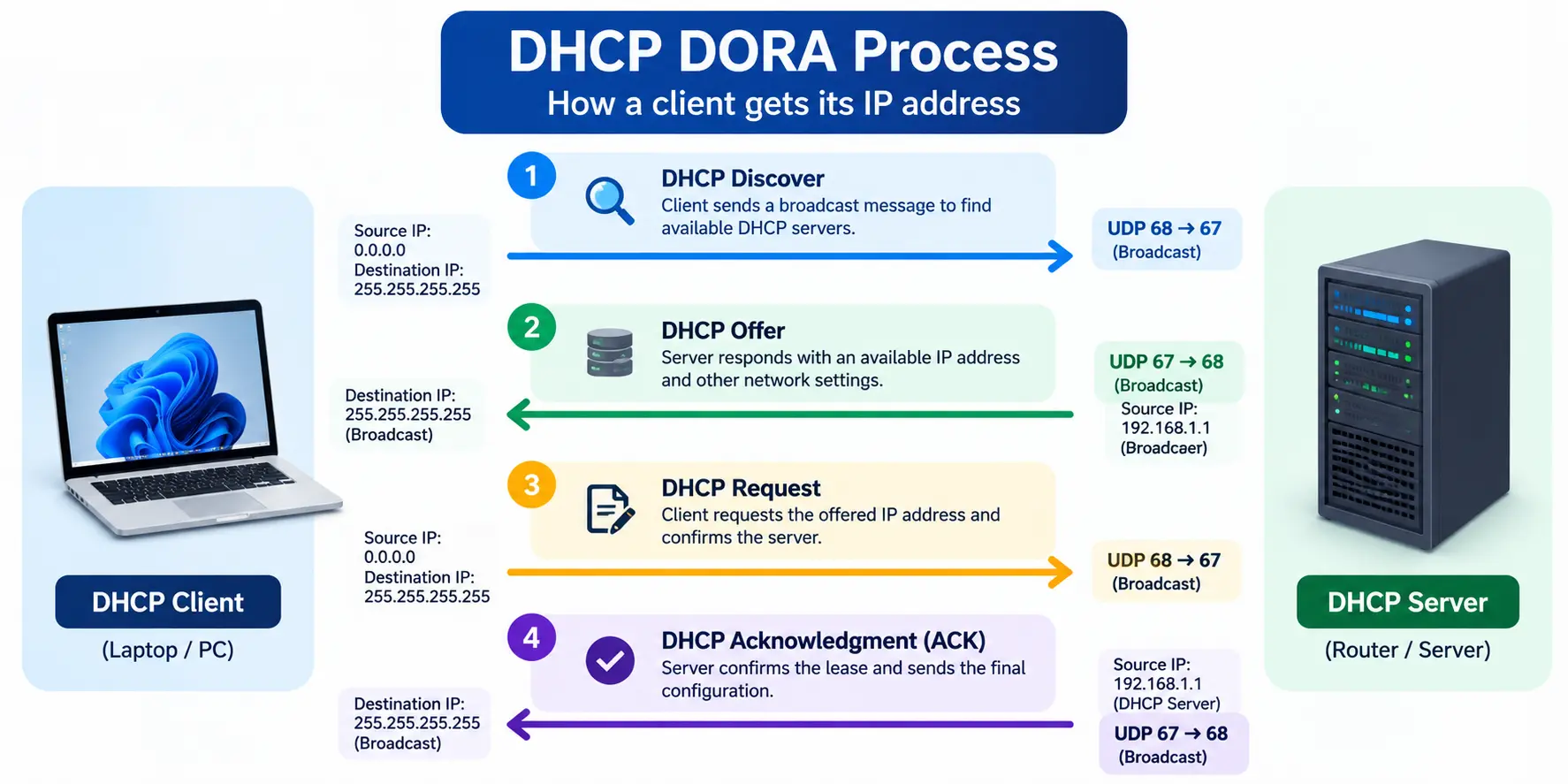
Let’s follow the packet flow.
1. DHCP Discover
When a client has no usable IPv4 configuration, it sends a DHCP Discover message to find a DHCP server.
Because the client does not yet have a usable IP address or know which DHCP server to contact, it typically sends the message as a broadcast.
2. DHCP Offer
The DHCP server receives the Discover message and checks its available addresses and configuration.
If it can serve the client, it sends a DHCP Offer containing a proposed IP address and other settings.
For example, the server may offer 192.168.1.100 with a subnet mask of 255.255.255.0 and a default gateway of 192.168.1.1.
3. DHCP Request
The client sends a DHCP Request indicating which offered address and server it has selected.
If multiple DHCP servers respond, this message also allows the other servers to identify that their offers were not selected.
4. DHCP Acknowledgment
The selected DHCP server responds with a DHCP ACK to confirm the lease and its configuration.
The client can then configure its network interface with the assigned settings.
The important part: Receiving an IP address does not automatically guarantee internet connectivity. The gateway, routing, DNS, VLAN configuration, and any relevant firewall policies must also be correct.
What Information Does DHCP Provide?
DHCP can provide more than just an IP address. The server supplies configuration through DHCP options.
Common options include:
| DHCP option | Purpose |
|---|---|
| Option 1 | Subnet mask |
| Option 3 | Router or default gateway |
| Option 6 | DNS servers |
| Option 15 | DNS domain name |
| Option 51 | IP address lease time |
For example, a client might receive the IP address 192.168.1.100, subnet mask 255.255.255.0, gateway 192.168.1.1, and DNS server 8.8.8.8.
The subnet mask determines which destinations the client considers local. The default gateway provides a path to other networks, while DNS servers help resolve hostnames into IP addresses.
If a client receives a valid IP address but cannot access websites, check the gateway and DNS settings instead of assuming DHCP has failed completely.
What Is a DHCP Lease?
A DHCP lease is the period during which a client is allowed to use an assigned IP address.
The lease duration is configured on the DHCP server. It can vary depending on the network and the type of devices connected to it.
For example, a DHCP server might assign an address for eight days. The client does not normally wait until the lease expires before trying to renew it.
Under the standard DHCPv4 process, the client typically attempts to renew the lease when approximately 50% of the lease time has elapsed. If renewal fails, it later attempts to rebind with any available DHCP server, commonly at approximately 87.5% of the lease time.
These are standard default timings; the actual timers can depend on the lease configuration and protocol behavior.
When a lease is renewed successfully, the client can continue using its address. If the lease expires without successful renewal, the client must stop using that address and obtain valid configuration.
Why Does a Device Sometimes Receive the Same IP Address Again?
DHCP does not necessarily assign a different address every time a device reconnects.
A server may offer the same address again if it is still available and the client’s previous lease information is known. A DHCP reservation can also be configured to provide a consistent address to a particular client.
However, dynamic assignment does not guarantee that a client will always receive the same address.
What Are the Types of DHCP IP Address Assignment?
DHCP supports different approaches to assigning addresses.
Dynamic allocation
The server selects an address from its available pool and leases it to a client for a defined period.
This is the most common approach for employee laptops, mobile devices, and guest devices.
Automatic allocation
The server automatically assigns an address to a client, often retaining that address for the client when possible. The address may remain assigned for a long time, depending on the server’s implementation and configuration.
Manual allocation using DHCP reservations
An administrator configures a reservation that associates a client identifier, commonly based on its MAC address in typical Ethernet environments, with a specific IP address.
For example, a printer might receive 192.168.1.50 whenever it requests its address through DHCP.
This provides consistent addressing while allowing the DHCP server to manage the configuration.
A reservation is different from manually configuring a static IP address directly on the device.
What Is a DHCP Scope?
A DHCP scope is a range of IP addresses and associated configuration settings that a DHCP server manages for a particular subnet.
Consider this example:
- Network:
192.168.1.0/24 - DHCP pool:
192.168.1.100–192.168.1.200 - Gateway:
192.168.1.1 - Reserved printer address:
192.168.1.50
The DHCP pool contains 101 addresses. The gateway and printer address are outside this pool, so they will not be dynamically assigned from this range.
This is a simple way to avoid assigning the same address to a statically configured device and a DHCP client.
A scope may also contain exclusions, reservations, lease settings, and DHCP options. If the scope runs out of available addresses, new clients may fail to obtain a lease even when the DHCP server itself is working correctly.
Which Ports Does DHCP Use?
DHCPv4 uses UDP ports 67 and 68.
| Port | Use |
|---|---|
| UDP 67 | DHCP server |
| UDP 68 | DHCP client |
DHCP uses UDP because it needs a simple request-and-response mechanism before the client has completed normal IP configuration.
When troubleshooting DHCP across VLANs or through a firewall, check the relevant UDP traffic and the relay configuration. Do not assume that allowing these ports alone will fix every DHCP issue; the traffic must also reach the correct server and return to the client.
For the protocol details, refer to the IETF DHCP specification, RFC 2131.
What Is a DHCP Server?
A DHCP server is the device or service that manages address assignments and provides network configuration to DHCP clients.
It could be:
- A home router providing addresses to devices on a home network.
- A Windows Server running the DHCP Server role.
- A Linux server running DHCP software.
- A dedicated network appliance or firewall that provides DHCP services.
A DHCP server does not have to be a separate physical machine. Many routers and firewalls can provide DHCP services for directly connected networks.
Can One DHCP Server Serve Multiple Subnets?
Yes. A single DHCP server can provide addresses to clients on multiple subnets if it is configured with the appropriate scopes and the network supports communication with those clients.
The usual challenge is that DHCP clients initially use broadcasts, and routers do not normally forward those broadcasts between subnets.
A DHCP relay agent solves this problem by forwarding DHCP messages between the client subnet and the remote DHCP server. On Cisco routers, this is commonly configured using the ip helper-address command.
How to Configure DHCP on a Cisco Router
Let’s look at a basic Cisco IOS example. This configuration is suitable for a simple lab and demonstrates how a router can act as a DHCP server.
Assume the LAN uses the following addressing plan:
- Network:
192.168.10.0/24 - Router LAN address:
192.168.10.1 - DHCP address range:
192.168.10.50–192.168.10.200 - DNS server:
8.8.8.8
First, configure the router’s LAN interface with its gateway address. The interface name depends on your router model and topology.
configure terminal

interface GigabitEthernet0/0
 ip address 192.168.10.1 255.255.255.0
 no shutdown
exit

ip dhcp excluded-address 192.168.10.1 192.168.10.49

ip dhcp pool LAN_POOL
 network 192.168.10.0 255.255.255.0
 default-router 192.168.10.1
 dns-server 8.8.8.8
exit

end
Let’s understand the important commands.
ip dhcp excluded-addressprevents the router from dynamically assigning addresses in the excluded range.ip dhcp pool LAN_POOLcreates a DHCP pool.networkdefines the subnet served by the pool.default-routerprovides the gateway address to clients.dns-serverspecifies the DNS server clients should use.
The router can dynamically assign available addresses from the subnet, excluding the configured range. In this example, the intended usable dynamic range is 192.168.10.50–192.168.10.254.
This example assumes the router is serving the directly connected LAN and that no other DHCP server is competing for clients on that network.
How to Verify DHCP on Cisco IOS
Use these commands:
show ip dhcp binding
show ip dhcp pool
show ip interface brief
show ip dhcp binding displays active address bindings. show ip dhcp pool shows pool statistics, including address utilization. show ip interface brief helps verify that the LAN interface is up and has the expected address.
After connecting a DHCP-enabled client, check whether it receives an address from the configured subnet.
For a complete Windows Server configuration walkthrough, including installing the DHCP role and creating scopes, see Microsoft Learn: Install and configure DHCP Server.
What Happens When a DHCP Server Is Down?
The result depends on the client’s current lease state.
Existing clients: Devices with valid leases can generally continue using their assigned addresses while the leases remain valid. They may experience problems when they need to renew their leases.
New clients: Devices that need an address may be unable to obtain one until a DHCP server becomes available.
Expired leases: If a client cannot renew or rebind its lease before expiration, it must stop using that address and attempt to obtain valid configuration.
Some Windows clients may automatically configure an IPv4 address in the 169.254.0.0/16 range when they cannot obtain a valid DHCP address. This is known as Automatic Private IP Addressing (APIPA).
An address such as 169.254.25.10 is a useful troubleshooting clue, but it does not prove that the DHCP server is down. A VLAN issue, blocked traffic, missing relay, exhausted scope, or other network problem could cause the same symptom.
How to Troubleshoot Common DHCP Problems
When a device fails to obtain an IP address, start with the client and work toward the server.
1. Check the client IP configuration
On Windows, run:
ipconfig /allLook for the assigned IPv4 address, subnet mask, default gateway, DHCP server, and lease information.
If the address starts with 169.254, investigate why the client did not receive a valid DHCP configuration.
2. Renew the DHCP lease
Run the following commands in Command Prompt:
ipconfig /release
ipconfig /renew
The first command releases the current DHCP configuration for the selected adapters, while the second requests a new configuration. Use these commands carefully on a remote computer because releasing its address may interrupt connectivity.
3. Check the DHCP scope
On the DHCP server, verify that the scope is active, the subnet is correct, and available addresses remain.
Also check whether exclusions or existing leases are consuming the expected address range.
4. Verify VLANs and DHCP relay
If clients in one VLAN receive addresses but clients in another VLAN do not, check the affected VLAN, gateway interface, and DHCP relay configuration.
For a remote DHCP server, verify that the relay forwards requests to the correct server and that the server has a scope for the client’s subnet.
5. Check firewall policies and packet flow
If DHCP crosses a firewall, inspect the relevant UDP traffic, security policies, routing, and return path.
A packet capture can help identify where the process stops:
- Discover visible, but no Offer: investigate the server, relay, scope and return path.
- Offer visible, but no Request: investigate client behavior and packet delivery.
- Request visible, but no ACK: investigate server selection, address allocation and server logs.
The exact symptoms can vary, so use captures from both sides when possible. Microsoft’s DHCP troubleshooting guide provides further diagnostic steps.
DHCP vs. Static IP Addressing
DHCP and static IP addressing serve different purposes.
| Feature | DHCP | Static IP |
|---|---|---|
| Configuration | Usually automatic | Configured manually on the device |
| Address management | Centralized through the server | Managed separately unless supported by another system |
| Risk of configuration mistakes | Reduced with correct scope settings | Higher if addresses are entered incorrectly |
| Common uses | Laptops, phones and user devices | Infrastructure interfaces and selected servers |
| Address consistency | May change over time | Remains configured until changed |
A DHCP reservation can provide a consistent IP address without requiring manual IP configuration on the client.
For infrastructure devices, choose the approach that fits the design. A manually configured address or DHCP reservation may both be appropriate, provided the addressing plan prevents conflicts.
Frequently Asked Questions About DHCP
Is DHCP a TCP or UDP protocol?
DHCP uses UDP. DHCPv4 uses server port 67 and client port 68.
Is DHCP the same as DNS?
No. DHCP provides IP addressing and network configuration. DNS resolves names, such as example.com, into IP addresses and can provide other DNS record information.
Does DHCP provide internet access?
No. DHCP provides network configuration. Internet access also depends on correct routing, DNS, firewall policies, NAT where required, and upstream connectivity.
Can two DHCP servers exist on the same network?
Yes, but they must be configured and coordinated appropriately. Unintended or rogue DHCP servers can give clients incorrect IP addresses, gateways or DNS settings.
Does DHCP always assign the same IP address?
No. A client may receive the same address again, but dynamic allocation does not guarantee it. Use a reservation when a consistent address is required.
What is the difference between a DHCP server and a DHCP client?
The server provides IP addresses and configuration. The client requests and uses that configuration.
Can DHCP work across VLANs?
Yes. A DHCP relay agent can forward client requests to a DHCP server on another subnet, provided the relay, routing, scopes and return path are configured correctly.
What does a 169.254.x.x address mean?
For an IPv4 client using APIPA, it usually indicates that the client did not obtain a valid DHCP configuration. Check the client, VLAN, relay, server and available address pool.
Final Thoughts
DHCP removes much of the manual work involved in assigning IP addresses, but it still depends on correct network configuration. Understanding DORA, leases, scopes and DHCP relay makes it easier to identify whether a problem is on the client, server, VLAN, or network path.
Once you understand the packet flow, you can troubleshoot DHCP methodically instead of simply restarting devices and hoping the issue disappears.
For the next step, learn how to configure DHCP on Windows Server and Cisco devices, including scopes, reservations, relay agents and verification commands.

Cybersecurity blogger with a focus on firewalls, network security, and tech trends making security simple for everyone, from IT pros to curious minds.