Imagine your computer can access other devices in the office, but it cannot reach the internet. Your IP address looks correct, and the network cable is connected. One of the first things to check is the default gateway.
A default gateway allows a device to send traffic to destinations outside its local network. In most office networks, this is the IP address of a router, Layer 3 switch, or firewall interface connected to the same subnet as the device.
Let’s look at how it works, how to find it, and what to check when something goes wrong.
1. What Is a Default Gateway?
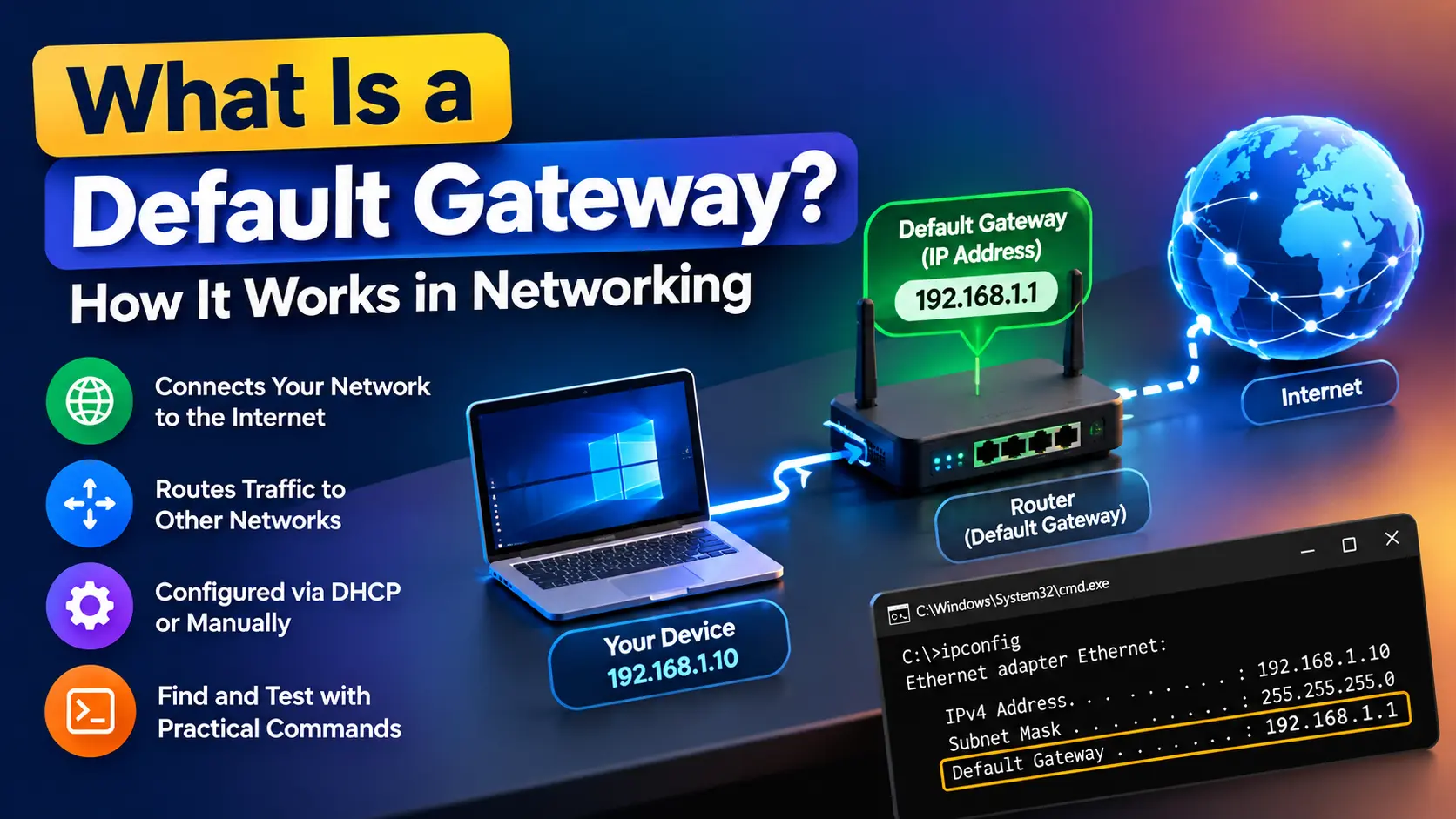
A default gateway is the next-hop device a computer uses when it needs to send traffic to a destination for which it has no more specific route.
For example, consider this network:
- Computer IP address:
192.168.1.10 - Subnet mask:
255.255.255.0 - Default gateway:
192.168.1.1
The computer belongs to the 192.168.1.0/24 network. If it needs to communicate with another computer at 192.168.1.20, it can send the traffic directly over the local network.
But what happens when it needs to reach 8.8.8.8?
That destination is outside its local subnet. The computer checks its routing table and, assuming no more specific route applies, sends the packet to 192.168.1.1.
The gateway then routes the traffic toward the destination.
The important point: A default gateway is not the destination of your internet traffic. It is the next hop used to reach destinations outside the local network.
2. What Is a Default Gateway IP Address?
The default gateway IP address identifies the local router or Layer 3 interface that the device uses to forward traffic to other networks.
Common examples include:
192.168.1.1192.168.0.110.0.0.1172.16.1.1
These are examples only. Your gateway can use a different address depending on the network design.
In a business environment, a gateway might be configured on a firewall interface or a Layer 3 switch rather than a standalone router.
For IPv4, the host’s gateway address is normally reachable on its local subnet. The host needs an appropriate local route to reach the next hop.
The gateway address is also different from the computer’s own IP address. For example, a computer may use 192.168.1.10 while its gateway uses 192.168.1.1.
3. How Does a Default Gateway Work?
To understand the default gateway, we need to follow what happens when a computer sends a packet.
Suppose your computer has the following configuration:
| Setting | Value |
|---|---|
| IP address | 192.168.1.10 |
| Subnet mask | 255.255.255.0 |
| Default gateway | 192.168.1.1 |
Now consider two situations.
Case 1: Communicating with a local device
Your computer needs to contact 192.168.1.20.
Because both addresses belong to the same /24 subnet, the computer determines that the destination is local. It can send the Ethernet frame directly to the destination device, resolving that device’s MAC address using ARP if necessary.
The default gateway is not needed for this communication.
Case 2: Communicating with a remote device
Now your computer needs to contact 8.8.8.8.
The computer compares the destination against its configured routes. Since the destination is outside the local subnet and no more specific route applies, the default route is selected.
Here’s what happens next:
- The computer selects
192.168.1.1as the next hop. - It resolves the gateway’s MAC address using ARP if the mapping is not already available.
- It sends an Ethernet frame to the gateway’s MAC address.
- The router or firewall receives the frame, examines the IP packet, and performs a routing lookup.
- The gateway forwards the packet toward the next network, subject to its routing and security configuration.
Notice the difference between the Ethernet frame and the IP packet. On the initial local-network hop, the destination IP remains 8.8.8.8, while the Ethernet destination MAC address belongs to the gateway. NAT may change IP addresses later if configured.
This is why the default gateway is necessary for communication with remote networks.
For more details on how Windows determines whether traffic should be sent directly to a local device or forwarded through the default gateway, refer to Microsoft’s TCP/IP addressing and subnetting documentation.
4. Default Gateway vs Default Route
These two terms are related, but they are not the same thing.
A default gateway is the next-hop device used to forward traffic. A default route is the routing-table entry that tells a device where to send traffic when no more specific route matches.
In IPv4, the default route is represented as:
0.0.0.0/0On Windows, the routing table may display it as a network destination of 0.0.0.0 with a netmask of 0.0.0.0.
For example:
Network Destination  Netmask       Gateway       Interface
0.0.0.0              0.0.0.0       192.168.1.1   192.168.1.10
This means the computer can use 192.168.1.1 as the next hop for destinations that match the default route.
A more specific route can take precedence. For example, if a VPN installs a route to 10.20.20.0/24, traffic for that network may go through the VPN instead of the normal internet gateway.
Routers also use default routes. In Cisco terminology, the default route is commonly called the gateway of last resort.
On routers, a default route is also known as the gateway of last resort. Cisco explains how default routes work and how they can be configured in its official IP routing documentation.
5. Default Gateway vs Router, DNS Server, and Modem
These terms are often used interchangeably, but they describe different things.
| Term | Purpose |
|---|---|
| Default gateway | The next hop a host uses for traffic outside its local network |
| Router | A device that forwards IP packets between networks |
| DNS server | Resolves domain names, such as example.com, into IP addresses |
| Modem | Connects to an ISP’s access network using the relevant access technology |
| Firewall | Enforces security rules and may also route traffic between networks |
A router can act as the default gateway, but the two terms do not mean exactly the same thing. The gateway is the role that a device or interface performs for a particular host.
Similarly, a DNS server does not replace the default gateway. Your computer might successfully resolve a website’s IP address but still fail to connect because its routing path is broken.
A Layer 3 switch or firewall can also serve as a default gateway. In an office, for example, a firewall interface might use 192.168.10.1 as the gateway for devices in the 192.168.10.0/24 subnet.
6. How to Find the Default Gateway in Windows
You can find the default gateway using Command Prompt or PowerShell.
Method 1: Using ipconfig
Open Command Prompt and run:
ipconfigLook for the active network adapter and its Default Gateway field.
Example output:
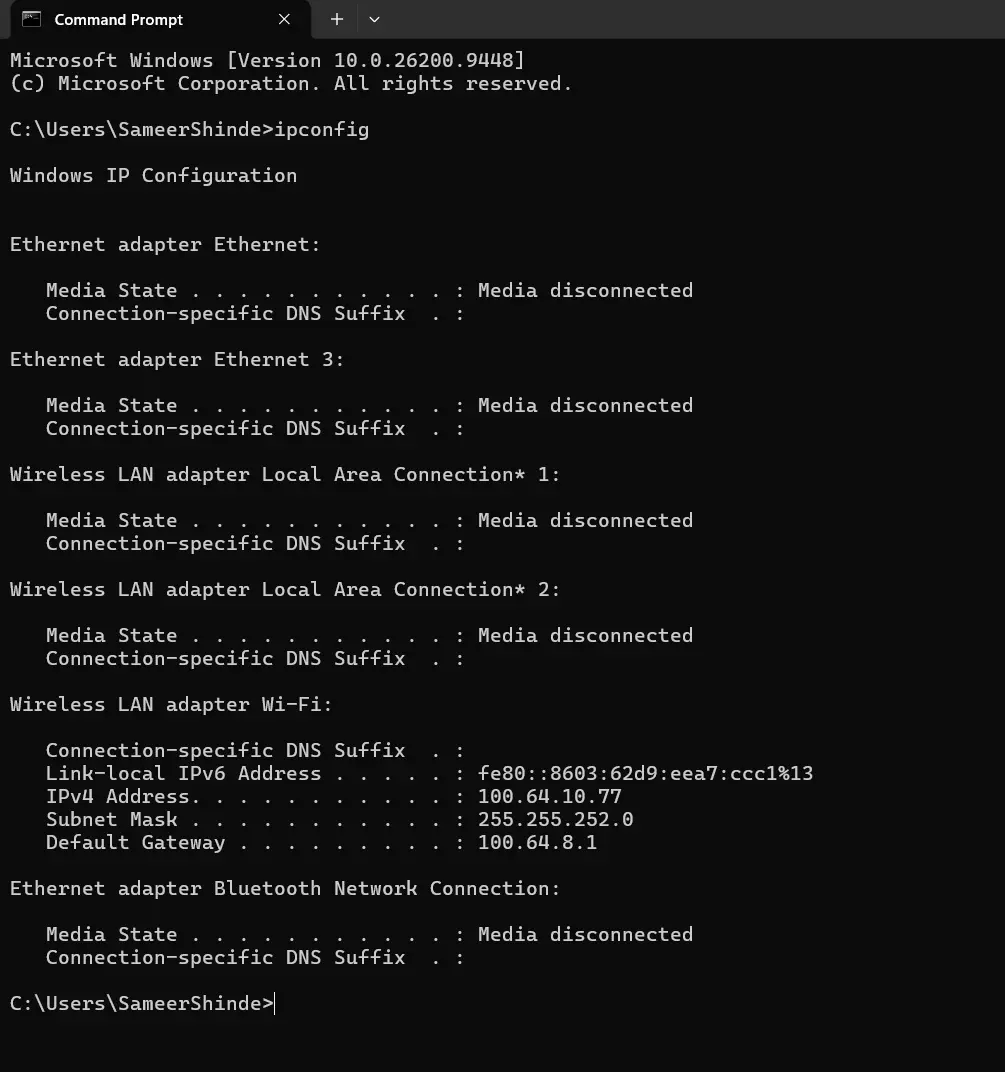
In this example, 100.64.8.1 is the gateway configured for the adapter.
Method 2: View complete network details
Run:
ipconfig /allThis displays additional information, including the DHCP server, DNS servers, physical address, and DHCP status.
Use this command when you suspect the gateway was assigned incorrectly or the computer received unexpected network settings.
Method 3: Display gateway lines only
Run:
ipconfig | findstr /i "Gateway"This filters the output to lines containing the word Gateway. It is a quick way to locate gateway entries, although it may display multiple adapters and does not identify which route Windows will actually use.
Method 4: Using PowerShell
Open PowerShell and run:
Get-NetIPConfigurationTo display only the interface alias, IPv4 address, and IPv4 default gateway:
Get-NetIPConfiguration |
    Select-Object InterfaceAlias, IPv4Address, IPv4DefaultGateway
If your computer has Ethernet, Wi-Fi, and a VPN adapter, do not assume that the first gateway displayed is the one being used for every destination. Check the routing table as well.
7. How to Find the Default Gateway in Linux and macOS
Network engineers often work across Windows, Linux, and macOS, so it is useful to know the equivalent commands.
Linux
Run:
ip routeExample output:
default via 192.168.1.1 dev eth0
192.168.1.0/24 dev eth0 proto kernel scope link
The first line identifies the default route:
defaultmeans the route applies when no more specific route is selected.via 192.168.1.1identifies the next-hop gateway.dev eth0identifies the outgoing interface.
To display only the default route, use:
ip route show defaultFor IPv6:
ip -6 route show defaultmacOS
Run:
route -n get defaultLook for the gateway and interface fields in the output.
You can also inspect the routing table with:
netstat -rnThe exact interface names and output depend on the operating system and network configuration.
8. Commands to Test Default Gateway Connectivity
Finding the gateway address is only the first step. We also need to determine whether the device can reach it and whether traffic can travel beyond it.
Test 1: Ping the gateway
On Windows, run:
ping 100.64.8.1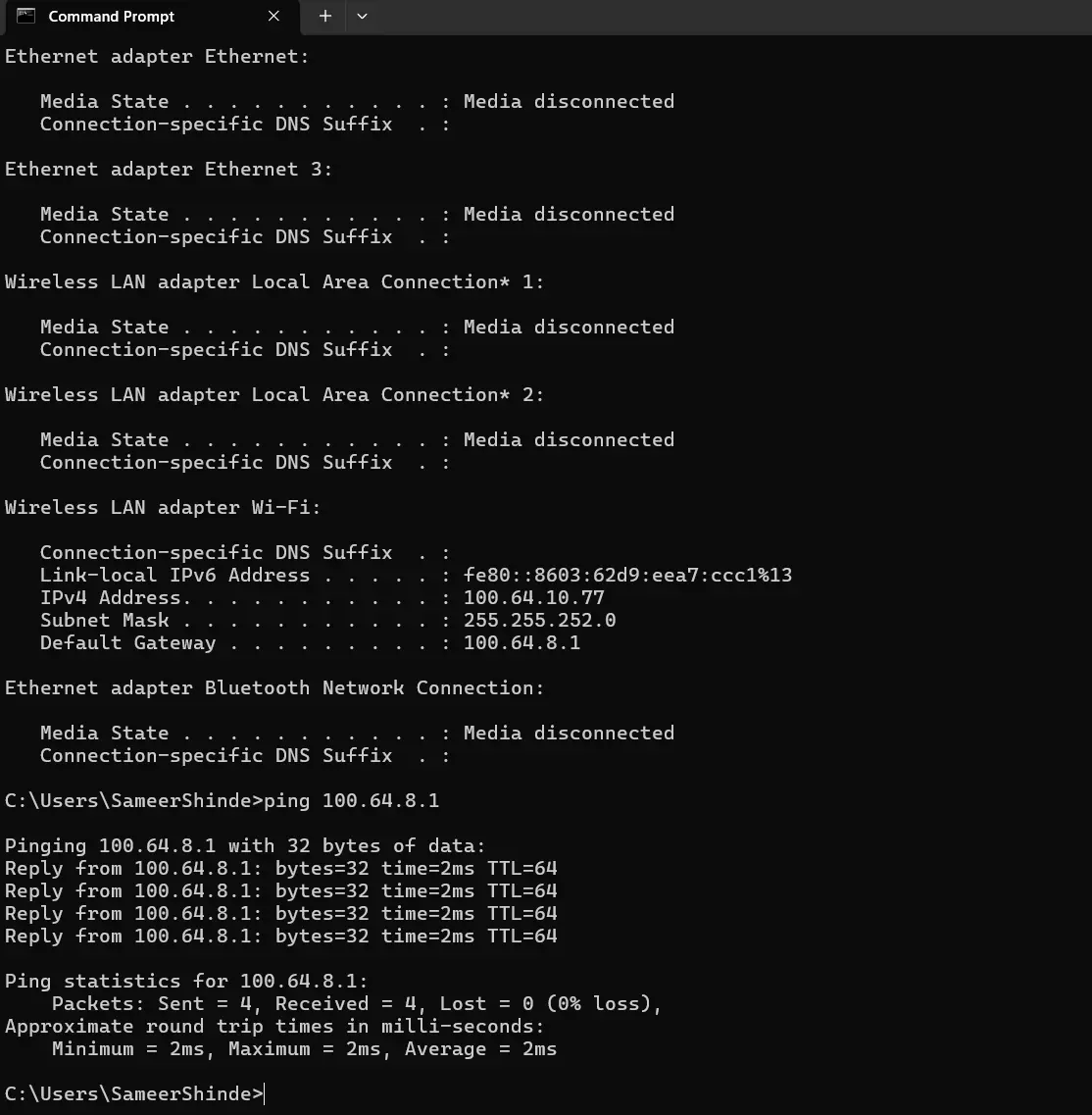
If you receive replies, the gateway is responding to ICMP echo requests from your computer. If the request times out, check the local connection, VLAN, IP configuration, and gateway interface. Keep in mind that ICMP may be blocked, so a timeout does not always mean the gateway is down.
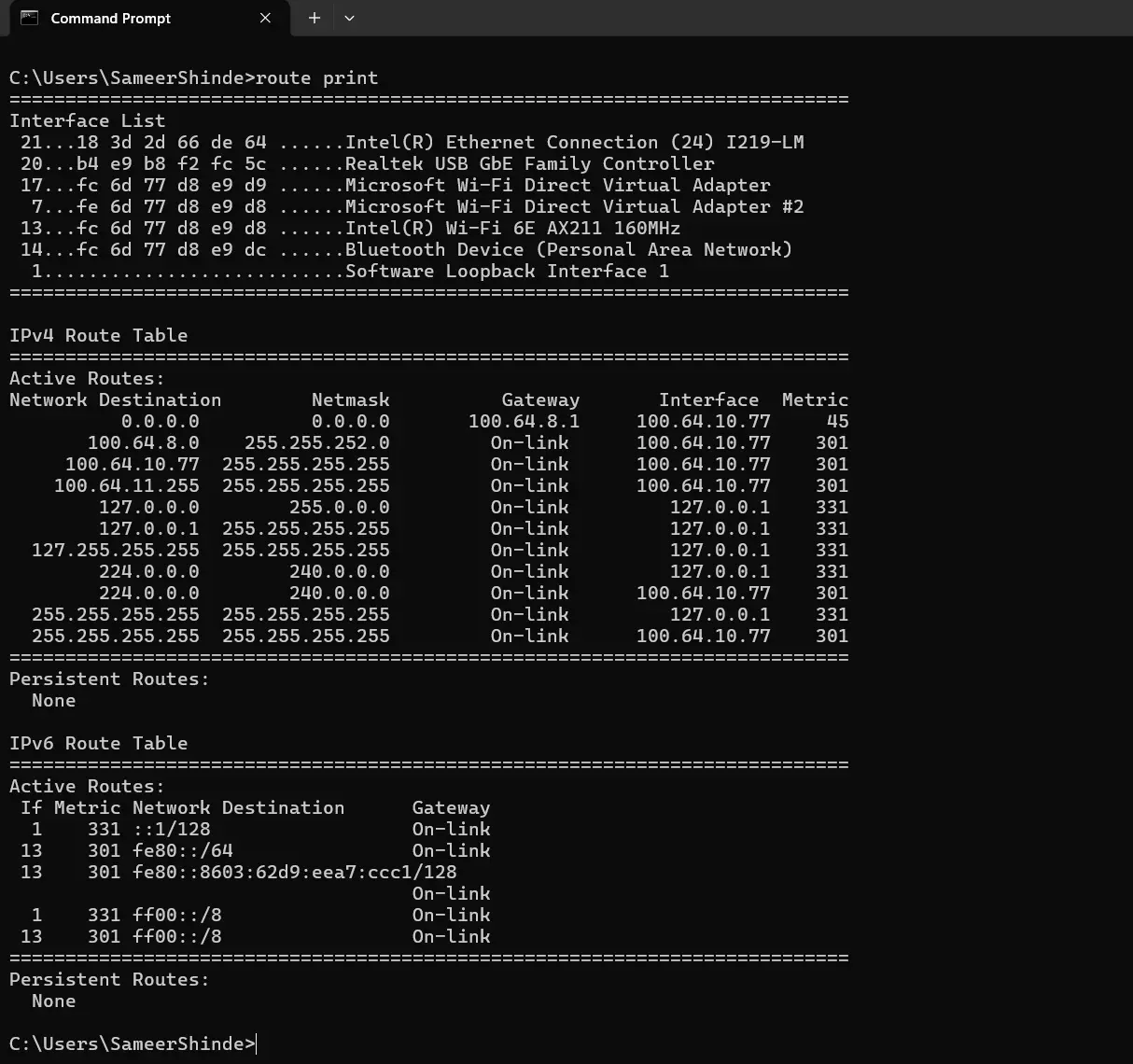
Test 2: Inspect the routing table
Run:
route printLook for the IPv4 default route, usually displayed with a destination of 0.0.0.0 and a netmask of 0.0.0.0.
Check the gateway and interface columns. If multiple default routes exist, route metrics and Windows route-selection rules help determine which route is preferred.
Test 3: Trace the route to a remote destination
Run:
tracert 8.8.8.8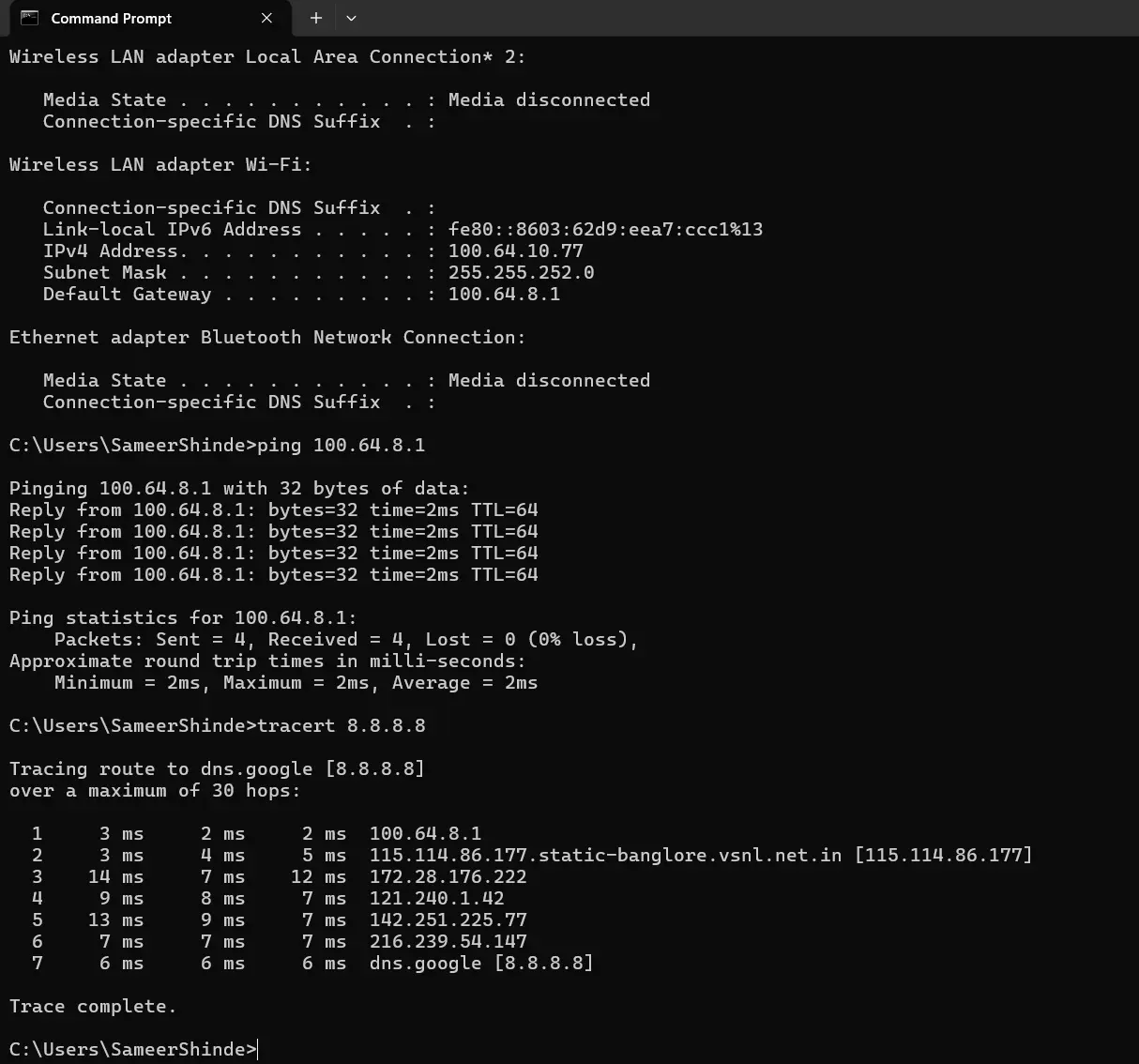
This shows the hops that respond to the trace probes. The first hop is often the default gateway, but it may differ depending on the route, VPN, or network topology. Some devices do not respond to traceroute probes, so an asterisk does not automatically indicate a forwarding failure.
On Linux and macOS, the equivalent command is generally:
traceroute 8.8.8.8Test 4: Check ARP entries
Run:
arp -aThis displays IPv4 address-to-MAC mappings known to Windows.
If the gateway’s mapping is present, it can help confirm that the computer has resolved the gateway’s local MAC address. A missing entry is not conclusive on its own; the computer may not have recently communicated with the gateway.
Test 5: Test a TCP connection
In PowerShell, run:
Test-NetConnection example.com -Port 443This tests TCP connectivity to port 443 on the resolved destination. It can help distinguish a general connectivity problem from an issue affecting a particular service, but it does not by itself prove which gateway was used.
9. How Is a Default Gateway Configured?
A default gateway can be assigned automatically through DHCP or configured manually.
Automatic configuration using DHCP
In a typical IPv4 network, a DHCP server provides the client with an IP address, subnet mask, and default gateway, along with other network settings.
The gateway is commonly delivered through DHCP Option 3, known as the Router option.
If a computer receives an incorrect gateway, check the DHCP scope, the configured router option, and whether the computer is connected to the correct VLAN.
Static configuration
A network administrator can manually configure the IP address, subnet mask, and gateway on a device.
For example:
| Setting | Value |
|---|---|
| IP address | 192.168.1.10 |
| Subnet mask | 255.255.255.0 |
| Default gateway | 192.168.1.1 |
The gateway must be reachable through an appropriate route. A wrong subnet mask or an unreachable gateway can prevent communication with remote networks.
Be careful when changing network settings remotely. An incorrect gateway or IP configuration can disconnect your management session.
10. Default Gateway in Office Networks, VLANs, and Firewalls
In an office network, the default gateway is often associated with a VLAN or subnet.
For example:
| VLAN | Network | Gateway |
|---|---|---|
| VLAN 10 – Users | 192.168.10.0/24 | 192.168.10.1 |
| VLAN 20 – Servers | 192.168.20.0/24 | 192.168.20.1 |
| VLAN 30 – Guest | 192.168.30.0/24 | 192.168.30.1 |
Each subnet uses an appropriate gateway address. Depending on the design, these addresses might exist on a Layer 3 switch, router, or firewall.
Consider a user in VLAN 10 trying to access a server in VLAN 20. The user’s computer sends traffic to its gateway, which routes the packet toward the server network. If a firewall handles inter-VLAN traffic, the applicable security policy must also allow the connection.
A correct default gateway alone does not guarantee that the connection will work. You may also need to check:
- The route to the destination network.
- Firewall security policies and access control lists.
- NAT rules, where applicable.
- The server’s default gateway and return route.
- VLAN tagging and interface configuration.
For VPN-connected computers, the VPN client may install more-specific routes or a new default route. This can change which interface carries traffic to a particular destination.
11. Common Default Gateway Problems and Troubleshooting
When a user reports that the internet or a remote application is not working, work through the problem rather than immediately changing the gateway.
| Symptom | What to check |
|---|---|
| No default gateway is displayed | Check the active adapter, DHCP status, and static IP configuration. |
| Gateway address is incorrect | Verify the subnet, DHCP scope, and configured gateway. |
| Local devices work, but remote networks do not | Check the default route, gateway reachability, and upstream routing. |
| Gateway ping fails | Check the local link, VLAN, IP settings, ARP resolution, and whether ICMP is permitted. |
| Gateway responds, but internet access fails | Check upstream routes, firewall rules, NAT, DNS, and ISP connectivity. |
| Only one computer has the issue | Check its IP configuration, adapter, local firewall, and routing table. |
| Multiple users have the issue | Check the shared gateway, switch, VLAN, firewall, and upstream connection. |
| VPN connects, but the application is unreachable | Check VPN routes, overlapping subnets, security policies, and return-path routing. |
A practical troubleshooting sequence
If you are troubleshooting a Windows computer, start with:
ipconfig /allVerify the IP address, subnet mask, gateway, and DHCP information.
Next, check the routing table:
route printConfirm that an appropriate route exists for the destination. If traffic should use the normal internet connection, inspect the IPv4 default route and any VPN-specific routes.
Then test the gateway:
ping 192.168.1.1If it fails, investigate the local network first. If it succeeds, test a remote IP address and then a hostname to help separate routing problems from DNS problems.
For example:
ping 8.8.8.8
nslookup example.com
Interpret the results carefully. A failed ping to 8.8.8.8 may be caused by ICMP filtering, and a successful DNS lookup does not prove that an application connection will succeed.
If the gateway is reachable but the required application still fails, continue toward the destination. Check firewall logs, NAT, upstream routing, and the return path.
12. Default Gateway in IPv6
Default gateways are not limited to IPv4. IPv6 hosts also use default routes to reach destinations outside their local networks.
The IPv6 default route is:
::/0Unlike typical IPv4 gateway configuration, IPv6 hosts commonly learn their default router through Router Advertisements sent using IPv6 Neighbor Discovery. A default router can also be configured manually or learned through other supported network configuration mechanisms.
Useful commands include:
Linux:
ip -6 route show defaultWindows:
netsh interface ipv6 show routeIPv6 uses Neighbor Discovery rather than ARP to discover neighboring devices and resolve link-layer addresses.
The basic principle remains the same: the host selects a route, forwards traffic to the appropriate next hop, and relies on that device to route the packet onward.
13. Frequently Asked Questions
Can a computer work without a default gateway?
Yes. A computer can communicate with devices on its local network without a default gateway, provided the local addressing and connectivity are correct. However, it generally needs an appropriate route to reach remote networks.
Is the default gateway always the router’s IP address?
No. It is the address of the next-hop interface used by the host. That interface may belong to a router, firewall, or Layer 3 switch.
Can a computer have two default gateways?
Yes, a computer can have multiple default routes. The operating system selects a route based on routing rules, route specificity, and metrics. Multiple gateways do not automatically provide reliable failover or load balancing.
What happens if the default gateway is wrong?
The computer may be unable to reach remote networks, even if communication with local devices still works. The result depends on the incorrect address and the available routes.
Is the default gateway the same as the DNS server?
No. The default gateway forwards traffic to other networks. DNS resolves domain names into IP addresses. Both may be required for normal internet access, but they perform different jobs.
How do I find my default gateway without Command Prompt?
On Windows, open Settings, go to Network & Internet, select your active Ethernet or Wi-Fi connection, and view the connection properties. The exact labels may vary by Windows version.
Final Thoughts
The default gateway is one of the first things to check when troubleshooting network connectivity, but it is only one part of the path.
Start with the device’s IP address and subnet mask. Verify the gateway and routing table, test local reachability, and then follow the traffic toward the destination. If the gateway is reachable but the application still fails, investigate routing, firewall policies, NAT, DNS, and the return path.
Once you understand how a host selects its next hop, network troubleshooting becomes much more methodical. You can identify where communication stops instead of changing network settings without knowing the cause.

Cybersecurity blogger with a focus on firewalls, network security, and tech trends making security simple for everyone, from IT pros to curious minds.