Every device on a network has an IP address and a MAC address, but they serve different purposes. Understanding how those two work together is one of the first big “aha!” moments in networking.
If you’ve ever wondered how a computer knows where to send an Ethernet frame when all it has is an IP address, the answer is ARP (Address Resolution Protocol). It’s a simple protocol, but it plays a critical role in almost every IPv4 network.

What Is ARP and Why Does It Exist?
Computers communicate using different types of addresses depending on where the traffic is going.
- IP address identifies a device logically on a network.
- MAC address identifies the physical network interface on the local network.
Here’s the catch:
When a PC wants to send data to another device on the same LAN, it usually knows the destination IP address, but Ethernet cannot deliver frames using IP addresses alone. It needs the destination MAC address.
That’s exactly the problem ARP solves.
Think of it like this.
Imagine you’re in an office where everyone has a desk number (IP address), but the mailroom delivers letters using employee names (MAC addresses). You know the desk number of the person you want to contact, but you don’t know their name. So you ask everyone:
“Who sits at Desk 25?”
The person at Desk 25 replies:
“That’s me.”
Now you know who to send the letter to.
ARP works almost exactly the same way.
How ARP Works Step by Step
Let’s say:
- PC-A: 192.168.1.10
- PC-B: 192.168.1.20
PC-A wants to send data to PC-B.
Step 1: Check the ARP Cache
Before asking the network, PC-A first checks its local ARP table.
It asks:
“Do I already know the MAC address for 192.168.1.20?”
If an entry already exists, there’s no need to send an ARP request.
This is why repeated communication between devices is usually faster.
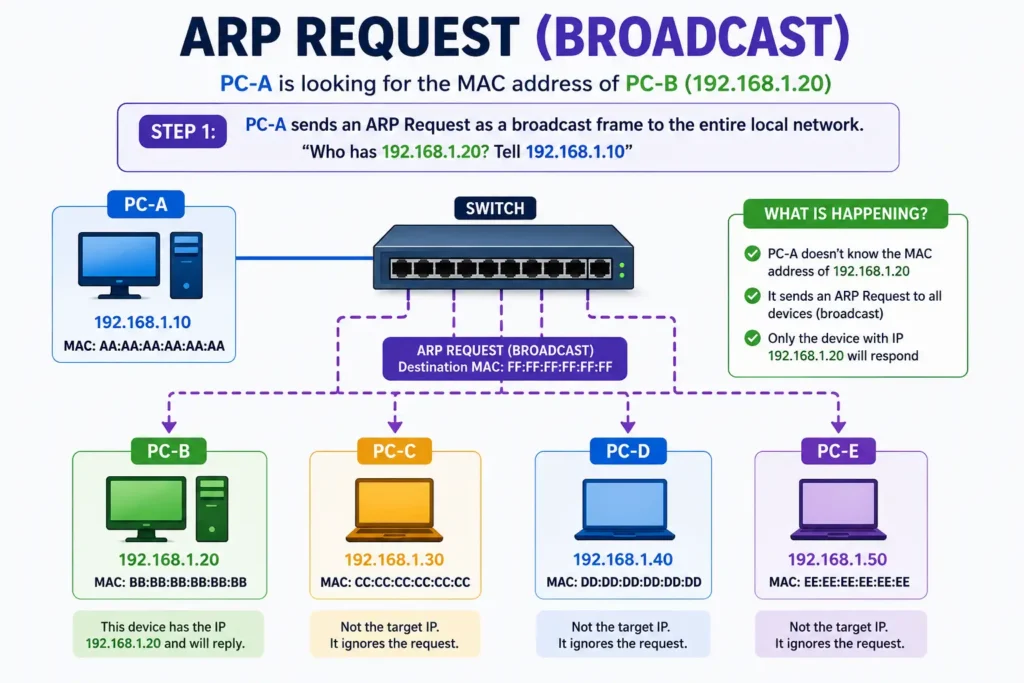
Step 2: Send an ARP Request
If no entry exists, PC-A sends an ARP Request.
This request is sent as an Ethernet broadcast.
Destination MAC:
FF:FF:FF:FF:FF:FFEvery device on the local network receives the frame.
The message essentially says:
“Who has IP address 192.168.1.20? Tell 192.168.1.10.”
This broadcast never crosses a router. ARP works only within the local Layer 2 network.
Step 3: The Correct Device Responds
Every device checks the requested IP address.
Only PC-B recognizes that it owns 192.168.1.20.
PC-B sends an ARP Reply directly back to PC-A.
Unlike the request, the reply is unicast, meaning it goes only to the requesting device.
The reply contains:
- PC-B’s IP address
- PC-B’s MAC address
Now PC-A knows exactly where to send Ethernet frames.
Step 4: Save the Information
PC-A stores the mapping inside its ARP cache.
For example:
| IP Address | MAC Address |
|---|---|
| 192.168.1.20 | 00-1A-2B-3C-4D-5E |
Future traffic can use this cached entry until it expires.
I’ve seen this trip up a lot of beginners—they expect ARP to happen every time a packet is sent. In reality, devices cache the information specifically to avoid unnecessary broadcasts.
Understanding the ARP Cache
An ARP cache (also called the ARP table) is simply a list of known IP-to-MAC mappings stored on the device.
Operating systems automatically add entries whenever ARP successfully resolves an address.
Entries don’t stay forever.
After some time, they expire and are removed automatically so outdated information doesn’t cause communication problems.
Viewing the ARP Table
On Windows:
arp -aExample output:
Interface: 192.168.1.10

Internet Address      Physical Address       Type
192.168.1.1           00-15-5D-20-31-10      Dynamic
192.168.1.20          00-1A-2B-3C-4D-5E      Dynamic
On Linux:
ip neighor
arp -nYou’ll notice entries marked as Dynamic or Static.
- Dynamic entries are learned automatically.
- Static entries are manually configured and do not expire unless removed.
ARP Packet Structure (The Basics)
You don’t need to memorize every field for the CCNA, but it’s useful to know what an ARP packet contains.
Some important fields include:
| Field | Purpose |
|---|---|
| Hardware Type | Usually Ethernet |
| Protocol Type | IPv4 |
| Hardware Size | Length of MAC address |
| Protocol Size | Length of IP address |
| Operation | Request or Reply |
| Sender MAC Address | MAC of the sender |
| Sender IP Address | IP of the sender |
| Target MAC Address | Unknown during a request |
| Target IP Address | IP being searched for |
The most important field is the Operation field.
- 1 = ARP Request
- 2 = ARP Reply
Everything else helps identify who is asking and who should respond.
What Is Gratuitous ARP?
Despite the name, Gratuitous ARP isn’t unnecessary.
It’s an ARP packet a device sends without anyone asking for it.
Instead of asking:
“Who has this IP?”
The device announces:
“I have this IP address.”
Why would it do that?
There are several reasons.
Detect Duplicate IP Addresses
If another device responds, you’ve discovered an IP conflict.
Update ARP Tables
Devices on the network update their ARP caches with the new MAC address.
High Availability
Protocols like HSRP and VRRP often use Gratuitous ARP after a failover.
Suppose the active firewall fails and the standby firewall takes over the virtual IP address.
The standby immediately sends Gratuitous ARP so every switch, server, and PC updates its ARP cache with the new MAC address.
Without this, many devices would continue sending traffic to the failed firewall until their ARP entries expired.
A Practical Example: PC-A Pings PC-B
Let’s walk through a simple example.
PC-A wants to ping PC-B on the same subnet.
Step 1
PC-A checks its ARP cache.
No entry exists.
Step 2
PC-A broadcasts:
“Who has 192.168.1.20?”
Every device connected to the switch receives the request.
Step 3
Only PC-B replies.
It sends its MAC address directly back to PC-A.
Step 4
PC-A stores the mapping in its ARP table.
Step 5
PC-A builds an Ethernet frame.
- Destination MAC = PC-B
- Source MAC = PC-A
Inside that Ethernet frame is the ICMP Echo Request (the ping packet).
Step 6
PC-B receives the frame and sends an ICMP Echo Reply.
Because ARP has already completed, the remaining ping packets are sent immediately without another broadcast.
ARP Security Risks
ARP was designed when networks were much smaller and more trusted.
One limitation is that ARP has no authentication.
Any device can send an ARP reply—even if nobody requested it.
This opens the door to ARP Spoofing (also called ARP Poisoning).
What Is ARP Spoofing?
An attacker sends fake ARP replies such as:
“192.168.1.1 is at AA:BB:CC:DD:EE:FF”
Victim devices update their ARP caches with the attacker’s MAC address.
Now traffic intended for the default gateway gets sent to the attacker instead.
This enables attacks like:
- Man-in-the-Middle (MITM)
- Packet sniffing
- Session hijacking
- Traffic manipulation
- Denial of Service
One of the easiest ways to recognize ARP spoofing during troubleshooting is when devices suddenly lose connectivity or when the MAC address associated with the gateway keeps changing unexpectedly.
Protecting Against ARP Attacks
While ARP itself cannot verify identities, network administrators have several ways to reduce the risk.
Dynamic ARP Inspection (DAI)
Managed switches can inspect ARP packets and verify that IP-to-MAC mappings match trusted information, usually learned from DHCP Snooping.
Invalid ARP packets are dropped before they reach other devices.
DHCP Snooping
DHCP Snooping builds a trusted database of legitimate IP-to-MAC bindings.
Dynamic ARP Inspection relies on this database.
Static ARP Entries
Critical devices such as servers or network infrastructure can use static ARP entries where appropriate.
However, this doesn’t scale well in large environments.
Network Segmentation
Smaller broadcast domains reduce the number of devices exposed to an ARP attack.
Using VLANs also limits how far an attacker can reach.
Firewalls and Endpoint Protection
Traditional firewalls don’t inspect ARP traffic because ARP operates at Layer 2 rather than Layer 3. However, firewalls still play an important role by enforcing network segmentation, controlling traffic between VLANs, and limiting the impact if an attacker compromises a local segment. Endpoint protection and intrusion detection tools can also detect suspicious ARP behavior on hosts.
Useful ARP Troubleshooting Commands
When troubleshooting local connectivity, ARP should always be one of the first things you check.
Some useful commands include:
Windows
arp -a
Display the current ARP table.
arp -d *
Clear all dynamic ARP entries.
Linux
ip neigh
Display neighbor entries.
ip neigh flush all
Clear the ARP cache.
You can also use Wireshark to capture ARP traffic. Apply the display filter:
arpWatching ARP Requests and Replies in real time is one of the best ways to understand how the protocol works.
Final Thoughts
ARP is one of those protocols that quietly keeps your network running. Most of the time you don’t even notice it, but when something goes wrong—an IP conflict, a stale ARP cache, or an ARP spoofing attack—it quickly becomes one of the first places to investigate.
If you’re studying for the CCNA or building a career in networking, take a few minutes to run arp -a on your own computer, clear the cache, and watch what happens when you ping another device on your LAN. Seeing ARP in action makes the concept stick far better than simply memorizing how it works.
🔗 Related Articles

Cybersecurity blogger with a focus on firewalls, network security, and tech trends making security simple for everyone, from IT pros to curious minds.